introduction
This course will have weekly assignments. Lab time each week will be used to complete the first part of each assignment and to ensure that you have all the tools and skills to successfully complete the assignment. Most assignments have a second part, which you may finish and submit later, although you are strongly encouraged to work on during lab time if you finish the first part early. For some of the assignments, you will be required to do a little pre-lab study and answer a few planning questions before the start of the lab.
In general, for lab time to be as effective as possible you should review your lecture notes, the reading and the assignment before coming to lab. You might want to have the online copy of the textbook, and/or the documentation available through python.org, on your screen while you work through the lab exercises.
The purpose of this first lab is to ensure that you:
- can log in to the lab machines
- have a working PyCharm development environment (optionally on your own personal machine)
- can create a PyCharm project and download/import sample/starter code into it
- can create and execute simple Python programs
- can properly use the automated submission system
part 1
In this class we'll work within the PyCharm integrated development environment, so this part gets you started with using the interpreter through PyCharm. In Part 1 of this lab you will:
- log into a lab machine
- (optional) install Python 3.12 and PyCharm 2024.2 (Community Edition) on your personal machine
- create a PyCharm workspace and start PyCharm
- create a new Python project and download/import a starter
- edit and run this program
The focus of Part 1 is to get you familiar with PyCharm, the IDE that we'll be using for the rest of the semester. You should feel free to ask each other for help, to check your answers with each other, and so on. In fact, for today, you should make sure to ask for help if at any point the instructions about PyCharm setup seem confusing or if you're not sure what options to select. We really want everyone's workspace to be set up the same way so that instructions for subsequent assignments make sense!
Finally, while you're encouraged to talk to one another, you need to make sure that you fully understand the material. Before you can receive the points for Part 1, you'll need to find an instructor or a TA. We'll look over your work and ask you some questions about the content. Then we'll give you points for part 1.
Logging in
You should be able to log into any lab machine using your Pomona account. It does not matter which lab machine you log in to. Any lab machine should recognize your account and take you to the same Desktop.
The first time you log in the system may be very slow, as it creates a new Desktop for you (and because many other students may be doing this at the same time). If you attempt to login to a lab machine before the lab, you can (a) get this over with and (b) deal with any problems before the actual start of the lab. If you are unable to log in to a lab machine with your Pomona account Username and Password, you need to contact ITS for help.
Python and PyCharm are already installed on the lab machines. If you choose to use the lab machines, then you can skip the next section and start to work on the lab. However, we highly recommend that you install Python and PyCharm on your personal laptop since it will be more convenient and easier for you to access your work.
Installing Python and PyCharm
You are welcome to do these projects entirely on lab machines, entirely on your own machine, or some combination (e.g. part 1 on lab machines and part 2 on your own personal machine). If you want to use your own personal machine (recommended), you will need to download and install Python and PyCharm.
- The latest Python interpreter can be downloaded from https://www.python.org/downloads (with packages for both Windows and Mac OSX). You should select the latest distribution of Python 3.12 and install it after it is downloaded.
- PyCharm can be downloaded by going to JetBrains. *Make sure you download the (free, open-source) Community Edition!!
Starting PyCharm
- In the left pane of the Finder window, click
Applications, and then scroll down to find "PyCharm CE".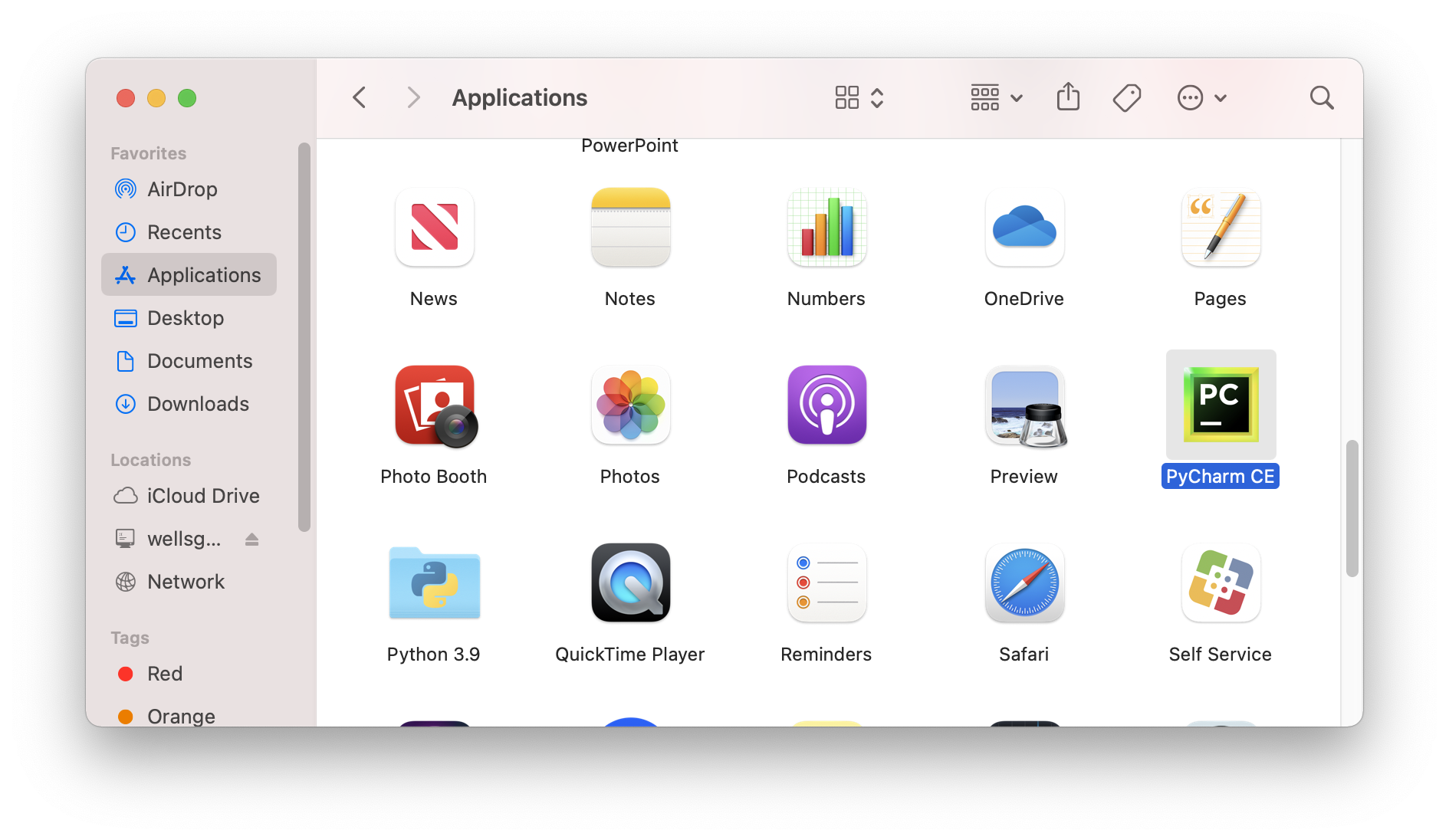
- Double click the
PyCharm CEicon to start PyCharm. A dialog box may say "PyCharm CE is an app downloaded from the Internet. Are you sure you want to open it?" ClickOpen. The next dialog box will say "JETBRAINS COMMUNITY EDITION TERMS". Click the checkbox to accept the User Agreement, then clickContinue. The next dialog box will say "DATA SHARING". ClickDon't Send. You should now be in PyCharm, which looks like this.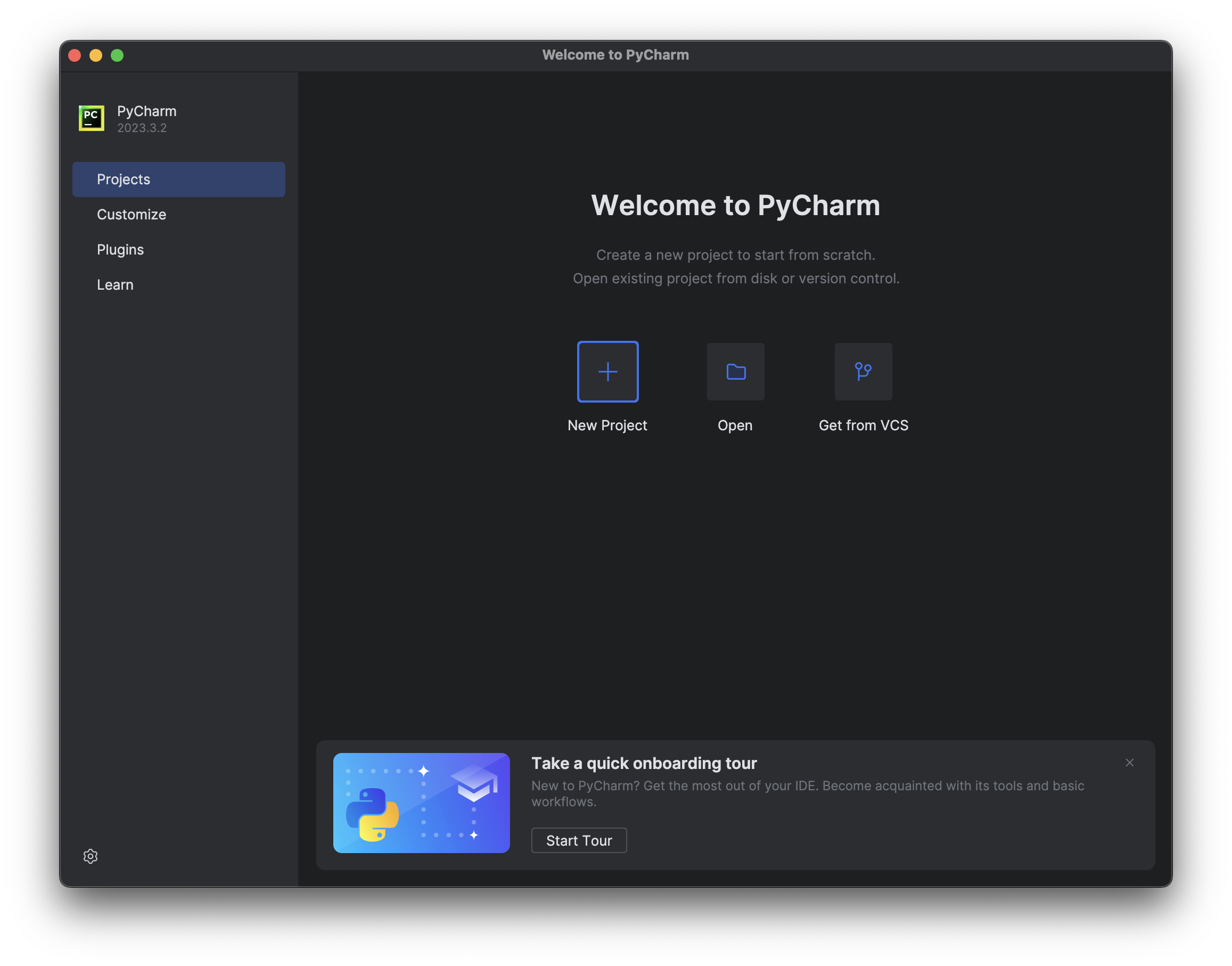
Launching PyCharm on your personal laptop:
- On a Mac you can start PyCharm by clicking the
PCicon on your menu-bar. - On a Windows system you can click
Startand search the name ofPyCharmto find it, and you can drag it to generate a shortcut or pin it to the start menu. - On an Ubuntu system you can use the Application launcher search function to find it, and then add it to your menu-bar.
Creating a new project
PyCharm will, by default, try to maintain all of your projects under a single folder. Before starting PyCharm for the first time you should create a new workspace folder.
On lab machines:
- In the left pane of the Finder window, click
Applications, and then scroll down to find "OneDrive". Follow the prompts to log into your OneDrive account (Note that you may need to do this for each new machine that you use. Additionally there are sometimes glitches that terminate the process in which case you should simply try again.) - Once you've logged in successfully it should give you an option to open the OneDrive folder. Right click inside the folder and choose "New Folder." Name the new folder "CSCI51p-Workspace".
- Now, you can go to PyCharm window, and click the
New Projectbutton. Set the fields in the window as follows:- The
Project Namewill be pre-filled to something likepythonProject. Rename itSetup. - The
Locationfield will be pre-filled to something like/Users/xxx99999/PycharmProjectswherexxx99999is your username. Delete this field. Replace it with/Users/xxx99999/OneDrive - Pomona College/CSCI51p-Workspacewhere you have again replacedxxx99999with your username. Example: for the usernametyc04747, the correct path is/Users/tyc04747/OneDrive - Pomona College/CSCI51p-Workspace - The box labeled "Create Git repository" should not be checked.
- The box labeled "Create a welcome script" should not be checked.
- The Interpreter type should be
Project venv. - The Python version should be
3.12.xwhere thexcould be any number (or it might just be3.12).
- The
-
The project configuration should look like this:
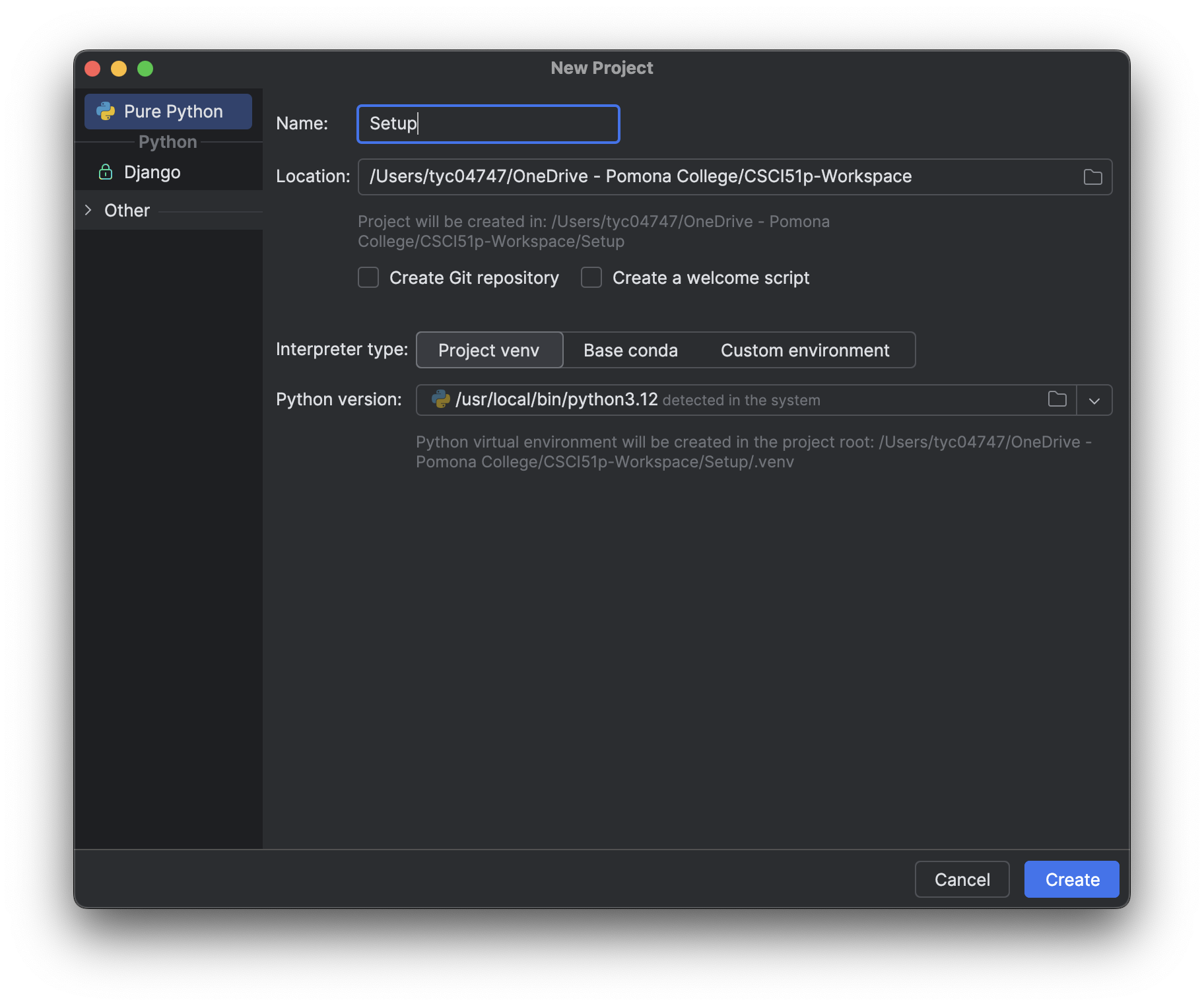 Click
Click Create. A dialog box will say "PyCharm CE wants to access files managed by OneDrive." ClickAllow. When the project is created, you can close the "Try these features" page by clicking on thexnext to the tab labeled "What's New in PyCharm" at the top of the window. At this point you should be in a PyCharm window that looks like this: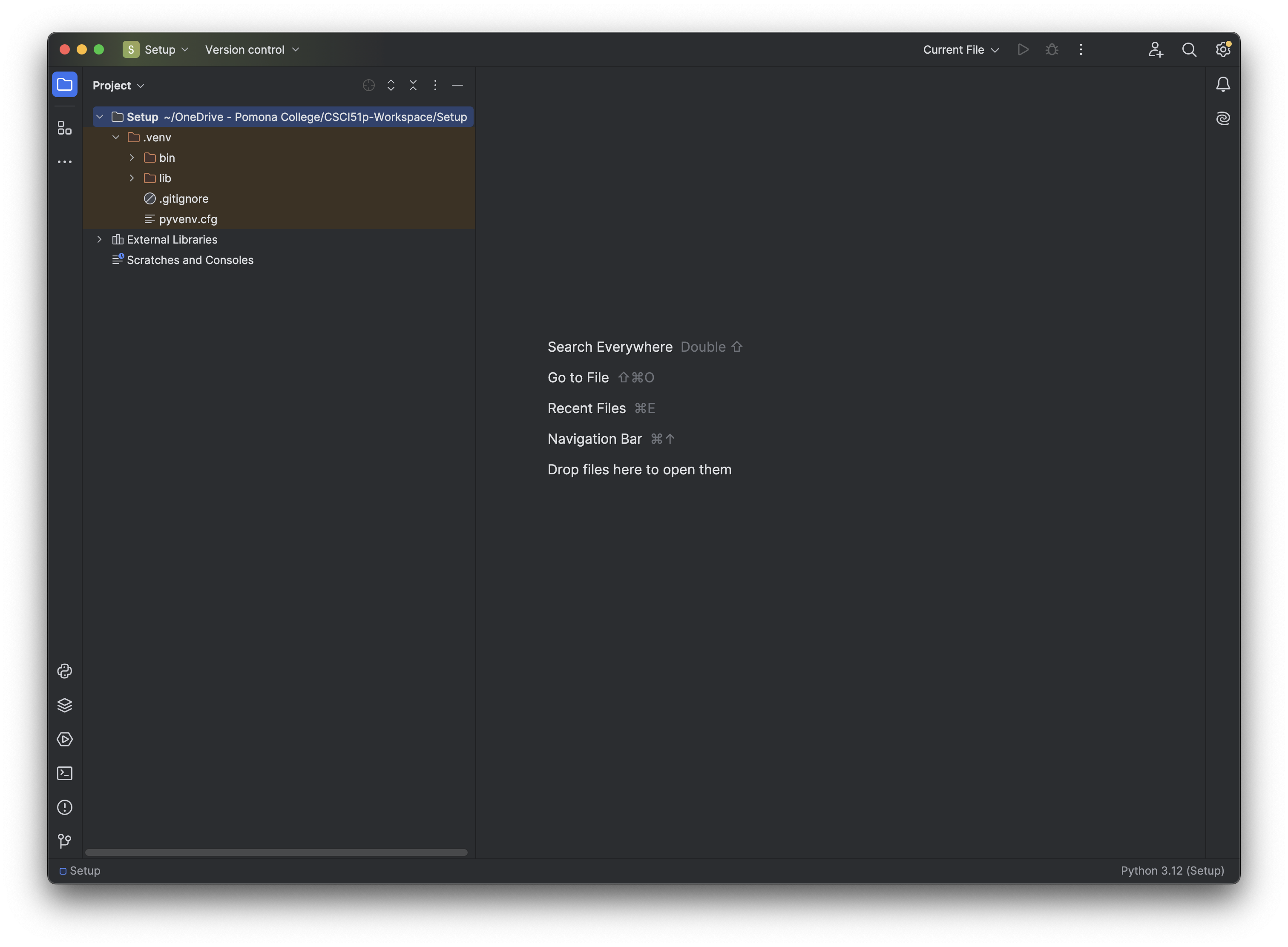
On personal laptop (recommended):
- We suggest that you create a new folder on your desktop named
CSCI51p-Workspace. - After starting PyCharm you can accept the defaults and, eventually,
should get to a screen that invites you to select Create New Project.
Go ahead and create the project, making sure that the location of the
project is a new sub-folder (e.g.
Setup) in theCSCI51p-Workspaceyou just created on your Desktop. - In the configuration window, you need to click on the folder button as shown below to navigate to your Desktop, and then select the
CSCI51p-Workspaceto open. After that, in the Location bar, you need to manually type in the subfolder name/Setupto create this new subfolder. Your configuration window should like similar to this: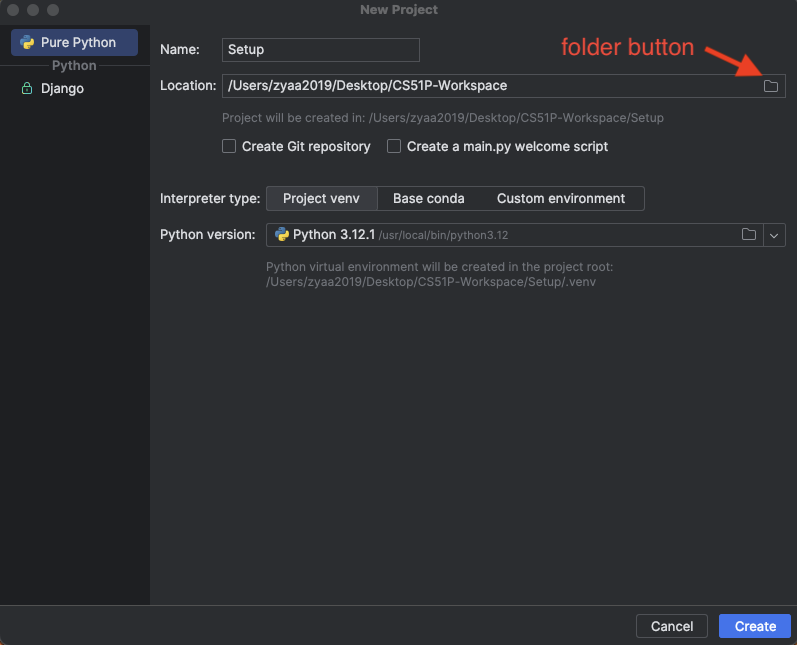
WARNINGS for new project creation
- make sure you put the new project in the Workspace folder you just created. Not in the default location, which will be very difficult for you to find.
- the box labeled "Create Git repository" should not be checked.
- the box labeled "Create a main.py welcome script" should not be checked.
- make sure the interpreter type is
Project venv - make sure the python interpreter version is
Python 3.12.x, where thexcould be any number - create a project folder for each lab assignment under the
CSCI51p-Workspaceon your desktop
Editing and running a Python program
Download the setup.py starter file for this
assignment, and copy it into the (recently created) CSCI051p-Workspace/Setup
folder. The file setup.py should appear in the left-side
list but, if not, you can ask PyCharm to re-scan that folder by clicking the triangle next to
the Setup folder (on the left-side list) to close and re-open it. The newly added
setup.py should now be visible. If you double-click it (in the left-side list),
that file should appear in the main editing window.
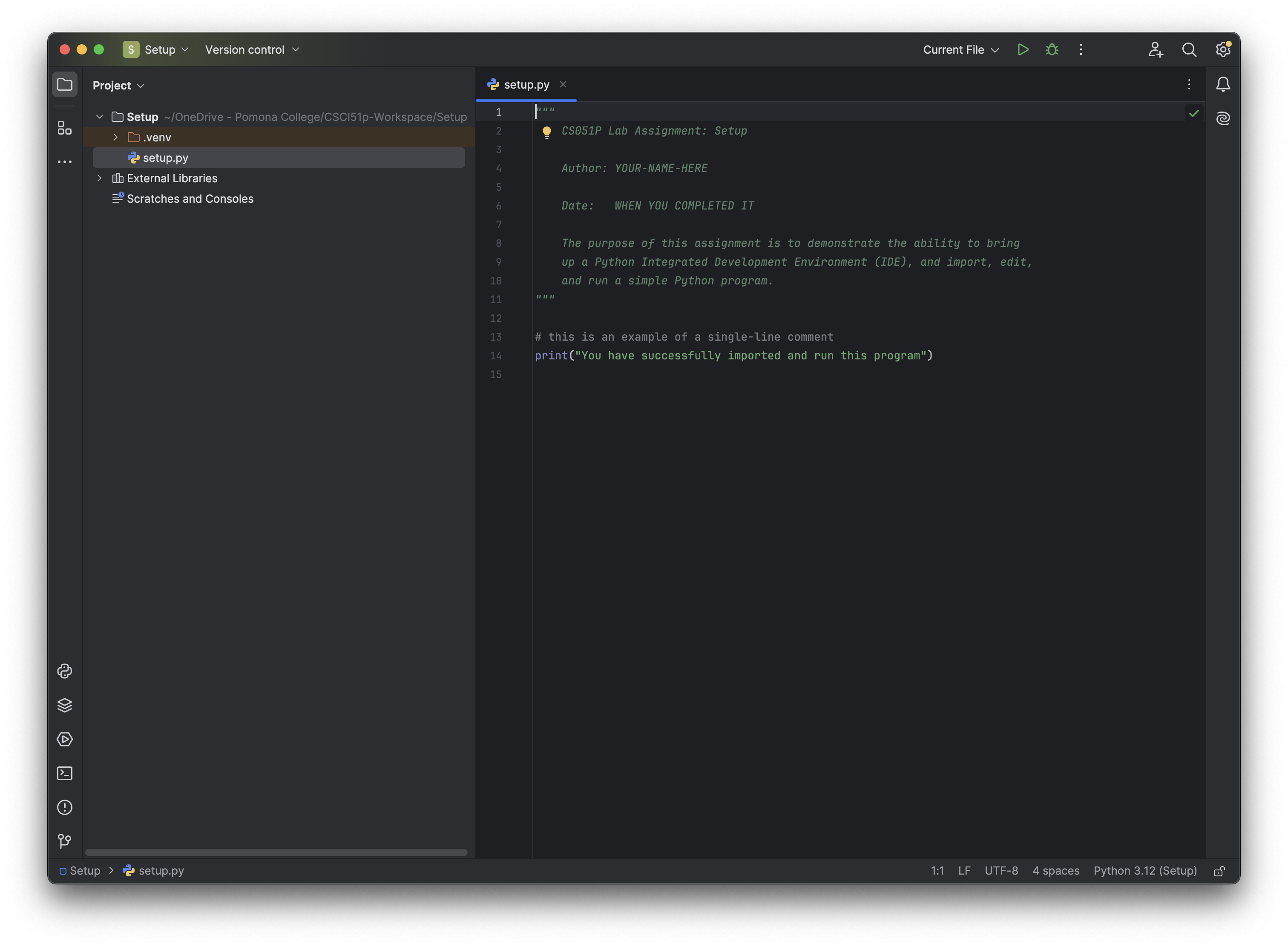
You should now be looking at the main screen:
- a menu bar at the top
- a (nearly empty at this point) list of projects and files on the left
- a main window
The easiest way to Run a program that you are editing is to place the cursor in
the file editing window and right-click. One of the options will be Run
(and the name of the currently selected file). If you select this option,
the Python interpreter will execute the selected program and display the output
(in a Run window) at the bottom of the screen.
If you have run multiple programs, you can choose which one you want to run with a selector and buttons near the top right of the screen:
- a drop-down list contains the names of each previously run file.
- a triangular run button will re-run the selected program.
Run->Run from the top
menu-bar and then choose (from the supplied list of previously run programs)
which one you want to run.
TASK: Changing the print statement
Edit the supplied starter and change the print statement to print out
the class, your name, and the assignment number. Sample output might
look like
CS051P Riley Greatstudent, Assignment #1: Setup
Run the program and confirm that it now prints out the correct information.
Checking-in
Call over an instructor or TA to check your output and code. If you have successfully gotten PyCharm started and made and run the above changes, they will award your points for Part 1.
part 2
Commenting your code
Code is written both for the machine and for people (both for other people such as TAs and for future-you). As a result, it is critical that you comment your code both for this class and for anything else you write. The following are two ways to comment code in Python; you should become comfortable with both.
- Any text that comes after a
#and before a newline is ignored by the interpreter. This can be used to introduce a short single-line comment.
Multi-line (or block) comments are enclosed in triple quotes.
Change the block comment at the beginning of the file to have your name.
After you have made these changes, run the program again to make sure you have not made any mistakes.A fuller discussion of commenting and code style can be found in the Python Coding Style Guidelines.
Feedback
Create a file named feedback.txt (in the same folder) that answers the following questions (you will answer the same questions for all the assignments this
semester):
- How long did you spend on this assignment?
- Any comments or feedback? Things you found interesting? Things you found challenging? Things you found boring?
logistics
Submission
For this lab you are required to submit two files:
setup.pyyour updated and commented version of the supplied starter file.feedback.txta text file containing your feedback for this assignment.
These should be submitted using Gradescope.
Note that you will lose credit if your submitted files are incorrectly named.
Note on Academic Honesty
You are encouraged to demonstrate your working code to each other.
You are even encouraged to be inspired by what other people have done
in order to make your own program even more amazing. However, if you
do so, you *must* acknowledge them (both name and what exact
idea you used from them) in that multi-line comment at the top of your
program. Note that you also must acknowledge any other sources that
you are inspired by (e.g. a submission based on HAL 9000 from Arthur
C. Clarke's novel 2001: A Space Odyssey). From experience,
we know that dealing with academic honesty cases is extremely
stressful for everyone involved. Please don't let it come to that.
Grade Point Allocations
| Part | Feature | Value |
|---|---|---|
| Lab | Importing starter into PyCharm project | 5 |
| Execution | prints course, name and assignment | 5 |
| Execution | no errors | 5 |
| Style | Correctly named file | 2 |
| Style | file-level block comment | 2 |
| Feedback | Completed feedback file submitted | 1 |